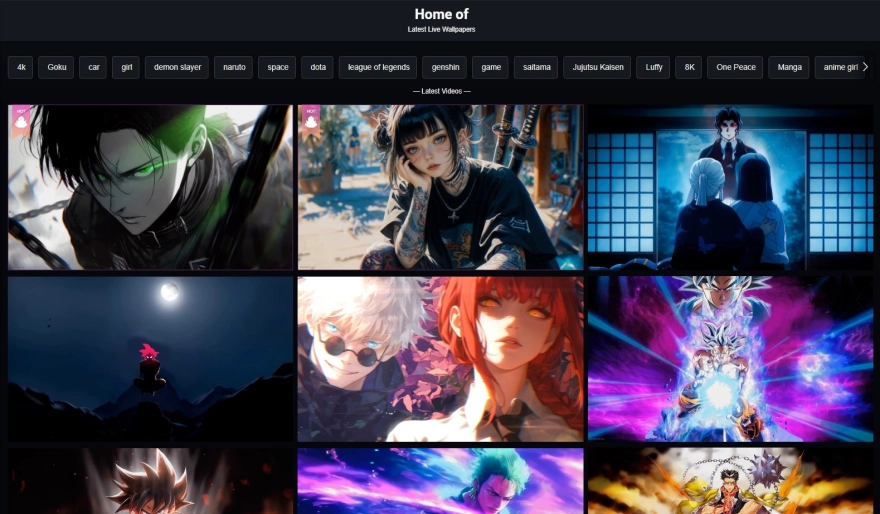
Choose and Download a Live Wallpaper: Visit desktophut.com and pick a live wallpaper that you like for your mobile phone.

Install Wallpaper Engine App: Go to the Google Play Store and search for "Wallpaper Engine". Install this app on your Android phone.

Open Wallpaper Engine: Once installed, open the Wallpaper Engine app on your phone.

Import Your Live Wallpaper: Look for the "Import File" button within the app and tap on it.

Select Your Downloaded Wallpaper: Find the live wallpaper video file that you downloaded from desktophut.com and tap on it to select it.

Confirm Selection: After selecting the file, tap on the check-mark or confirm button to proceed.

Set Wallpaper: Now, tap on the "Set Wallpaper" button.

Choose Display Option: You'll be prompted to choose where you want the live wallpaper to appear—either on your home screen only or on both the home screen and lock screen. Select your preference.

Enjoy Your New Live Wallpaper: Congratulations! Your chosen live wallpaper will now be active on your Android phone, adding a dynamic touch to your device.